
Creating professional-quality music no longer requires expensive studio equipment or years of musical training. MeloGen Studio makes music creation accessible to everyone by transforming simple ideas into studio-quality songs within seconds. Whether you're a content creator, marketer, aspiring artist, or hobbyist, MeloGen Studio empowers you to generate custom music effortlessly.
This step-by-step guide will walk you through how to use MeloGen Studio, from signing in to generating your first song or instrumental track.
What is MeloGen Studio?
MeloGen Studio is a powerful web-based AI music generator that allows users to create complete songs with vocals or high-quality instrumental tracks using simple text prompts. Designed for both beginners and professionals, the platform streamlines the music production process while delivering polished, studio-ready results.
Getting Started with MeloGen Studio
Step 1: Sign In to Your Account
To begin, visit the MeloGen Studio website and sign in using your credentials. Once logged in, you’ll be directed to the main dashboard—the central hub for all your music creation activities.
Understanding the Dashboard
After signing in, users land on a clean and intuitive dashboard featuring the headline “Studio Sound at Your Fingertips.” From here, you can start creating music immediately by choosing one of two primary options:
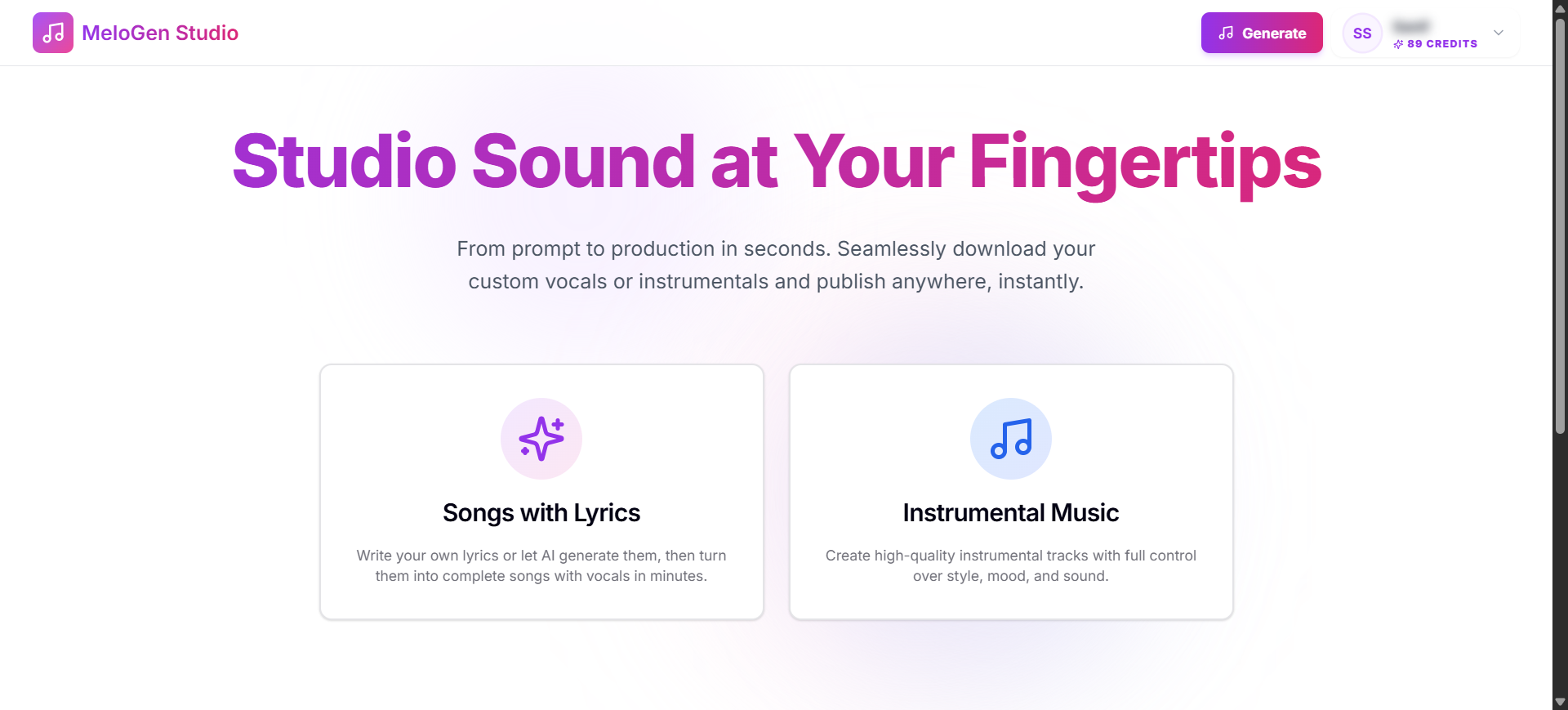
1. Songs with Lyrics
This option allows you to generate complete songs with vocals. You can either:
- Write your own lyrics, or
- Let the AI generate lyrics based on your prompt.
Once the lyrics are ready, MeloGen Studio transforms them into a fully produced song with melody, instrumentation, and vocals in just minutes.
Best for:
- Original music releases.
- YouTube or social media content.
- Brand jingles and advertisements.
- Storytelling and emotional songs
2. Instrumental Music 🎵
Selecting Instrumental Music enables you to create high-quality instrumental tracks without vocals. Users have full control over the style, mood, and sound, making it ideal for background music and professional productions.
Best for:
- YouTube background music.
- Podcasts and intros/outros.
- Game soundtracks.
- Film and cinematic scoring.
- Meditation or study music.
Step-by-Step Guide to Creating Music
Step 2: Choose Your Music Type
From the dashboard, select one of the following:
- Songs with Lyrics – for vocal tracks.
- Instrumental Music – for music without vocals.
This choice determines the workflow and customization options available in the next steps.
Step 3: Enter Your Creative Prompt
MeloGen Studio’s text-to-music technology allows you to describe your vision in simple words. Provide details such as:
- Genre: Pop, Hip-Hop, EDM, Rock, Lo-fi, Classical, etc.
- Mood: Happy, sad, energetic, romantic, cinematic.
- Tempo: Slow, mid-tempo, or fast.
- Instruments: Piano, guitar, synths, orchestral elements.
- Theme or Story: Love, adventure, motivation, nostalgia.
Step 4: Generate Lyrics (For Songs with Lyrics)
If you selected Songs with Lyrics:
- Choose whether to write your own lyrics or generate them using AI.
- Review and edit the lyrics to match your creative vision.
- Select vocal preferences and stylistic elements.
- Proceed to generate the complete song.
Step 5: Customize Your Track
Depending on your selection, you can refine various elements:
For Songs with Lyrics
- Adjust lyrical themes and structure.
- Select vocal styles.
- Fine-tune genre and mood.
- Regenerate variations if needed.
For Instrumental Music
- Define the musical style and ambiance.
- Adjust tempo and instrumentation.
- Generate multiple variations to find the perfect sound.
Step 6: Generate and Preview
Click the “Generate” button to let MeloGen Studio create your track. Within seconds, the AI produces a studio-quality composition. Use the preview feature to listen and evaluate the result. If necessary, tweak your prompt and regenerate until you achieve the desired outcome.
Step 7: Download and Use Your Music
- Once satisfied with your creation:
- Download the track in high-quality audio format. - Use it for personal or commercial projects such as: - YouTube videos - Podcasts - Social media content - Advertisements - Games and films
Additional Dashboard Features
Credits System
MeloGen Studio operates on a credits-based system, visible in the top-right corner of the dashboard. Each music generation consumes one credit, allowing users to manage their creative output efficiently.
Generate Button
A prominent “Generate” button is accessible from the dashboard, enabling users to start creating music instantly from anywhere within the platform.
Conclusion
MeloGen Studio simplifies the music creation process by offering two powerful pathways: Songs with Lyrics for complete vocal productions and Instrumental Music for high-quality background tracks. With its intuitive dashboard, text-to-music capabilities, and fast generation process, anyone can create studio-quality music in just a few clicks.
Whether you’re producing content for social media, crafting a cinematic score, or experimenting with new musical ideas, MeloGen Studio provides all the tools you need to bring your vision to life.
Ready to create your first track? Sign in to MeloGen Studio today and experience studio sound at your fingertips.